Integrations
Sources
RudderStack

RudderStack source

Receive RudderStack webhook events in Knock to trigger workflows and keep user data in sync with track and identify events.

The RudderStack source enables you to receive RudderStack webhook events directly in Knock. RudderStack sends webhook callbacks when track and identify events flow through your workspace. Knock identifies the event type and executes the actions you configure.

This integration is useful for triggering notification workflows from track events, such as alerting users when key actions happen in your product, or syncing user data into Knock from identify events so recipient profiles stay up to date.

Prerequisites

#
  • A Knock account with at least one environment configured.
  • A RudderStack workspace with access to destination settings.

Getting started

#
1

Create the source in Knock

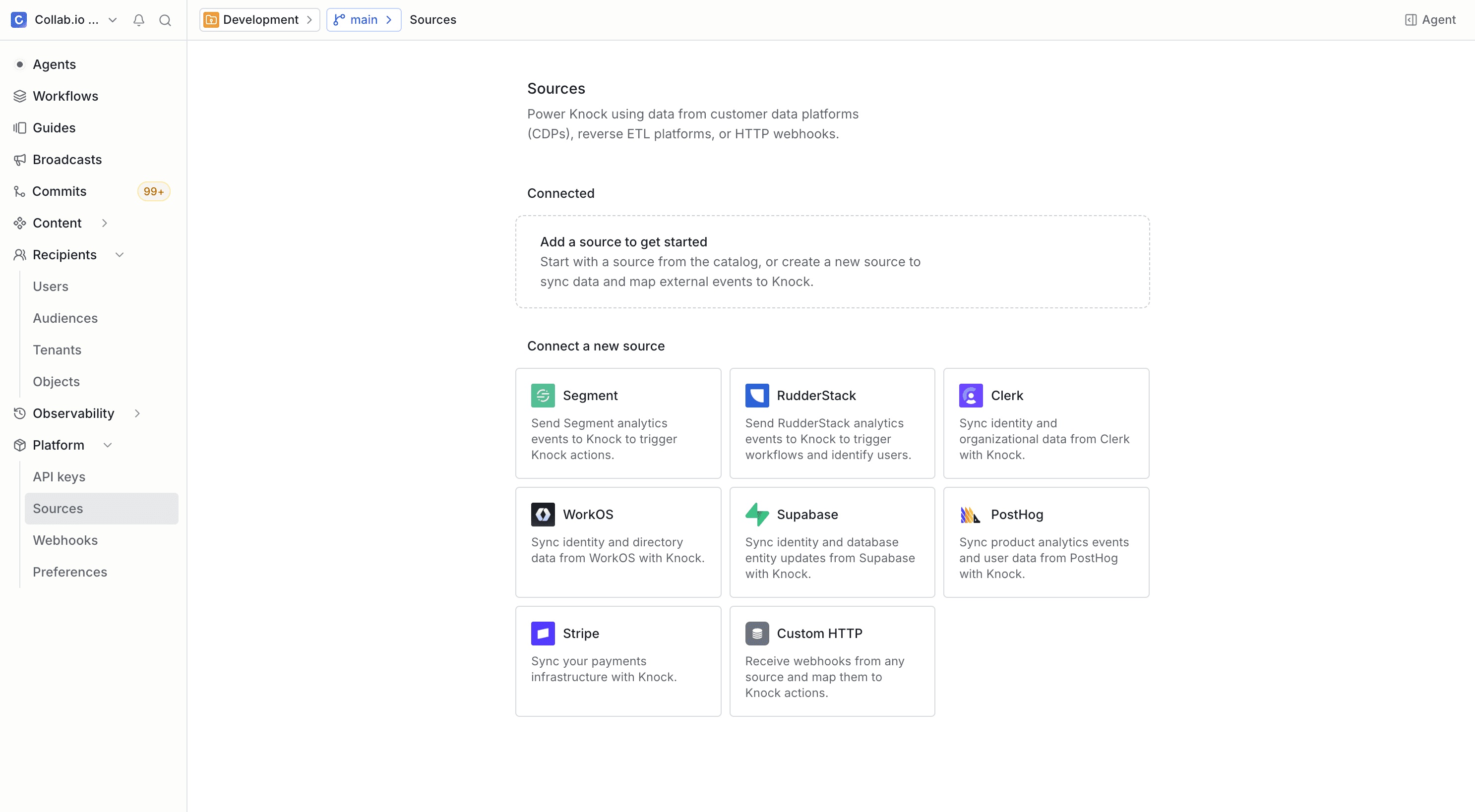
Navigate to Platform > Sources in the Knock dashboard. Make sure you're in the correct environment. Select the RudderStack template as the source type.

The Sources page in the Knock dashboard
2

Select default action mappings

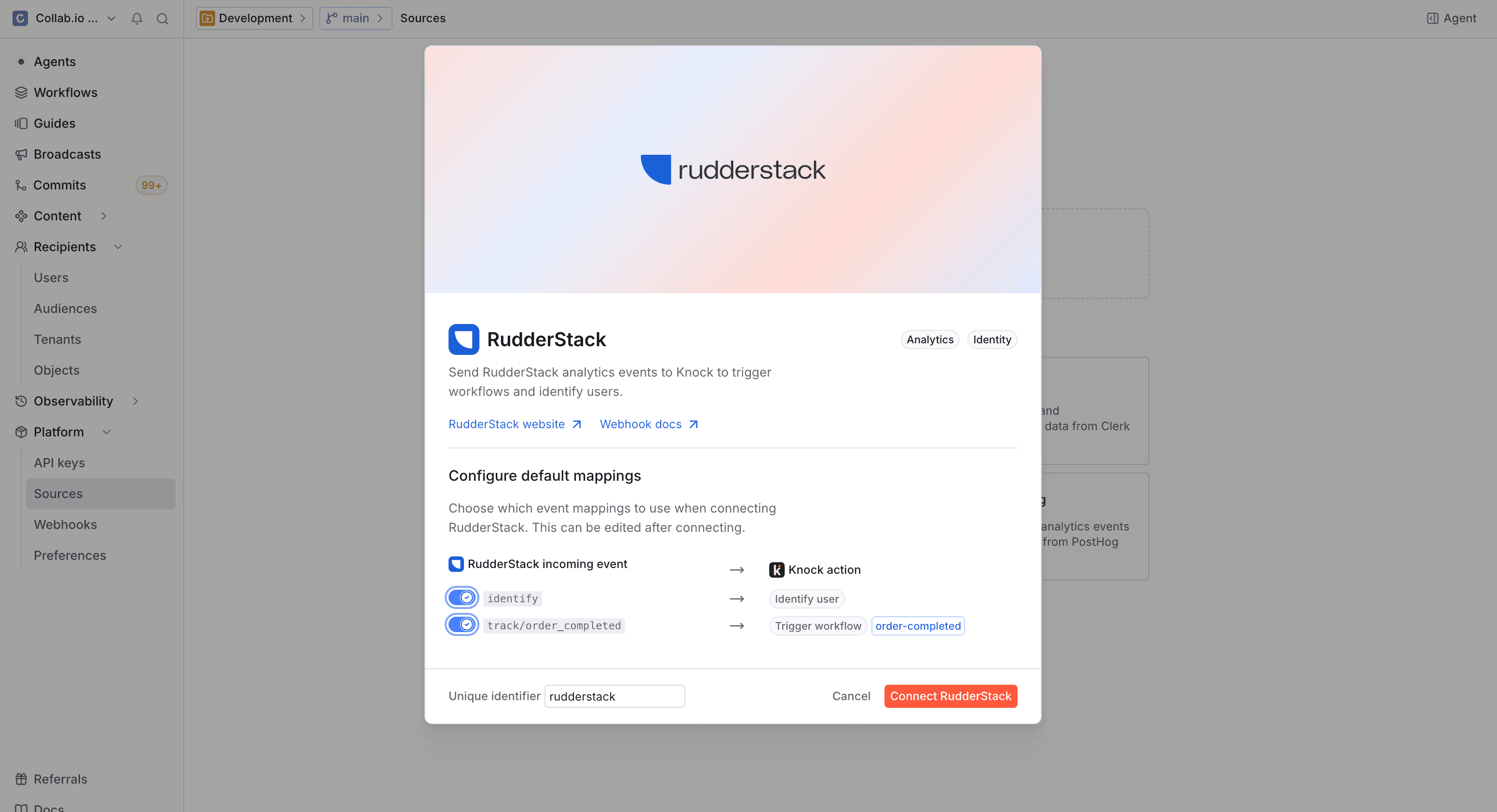
Once you've selected RudderStack as a source, you can select your desired action mappings. The defaults map common RudderStack events like identify to identify users and track/order_completed to trigger workflows. You can always add additional action mappings later. Click the Connect RudderStack button to continue.

The RudderStack source creation modal showing default action mappings for incoming events
3

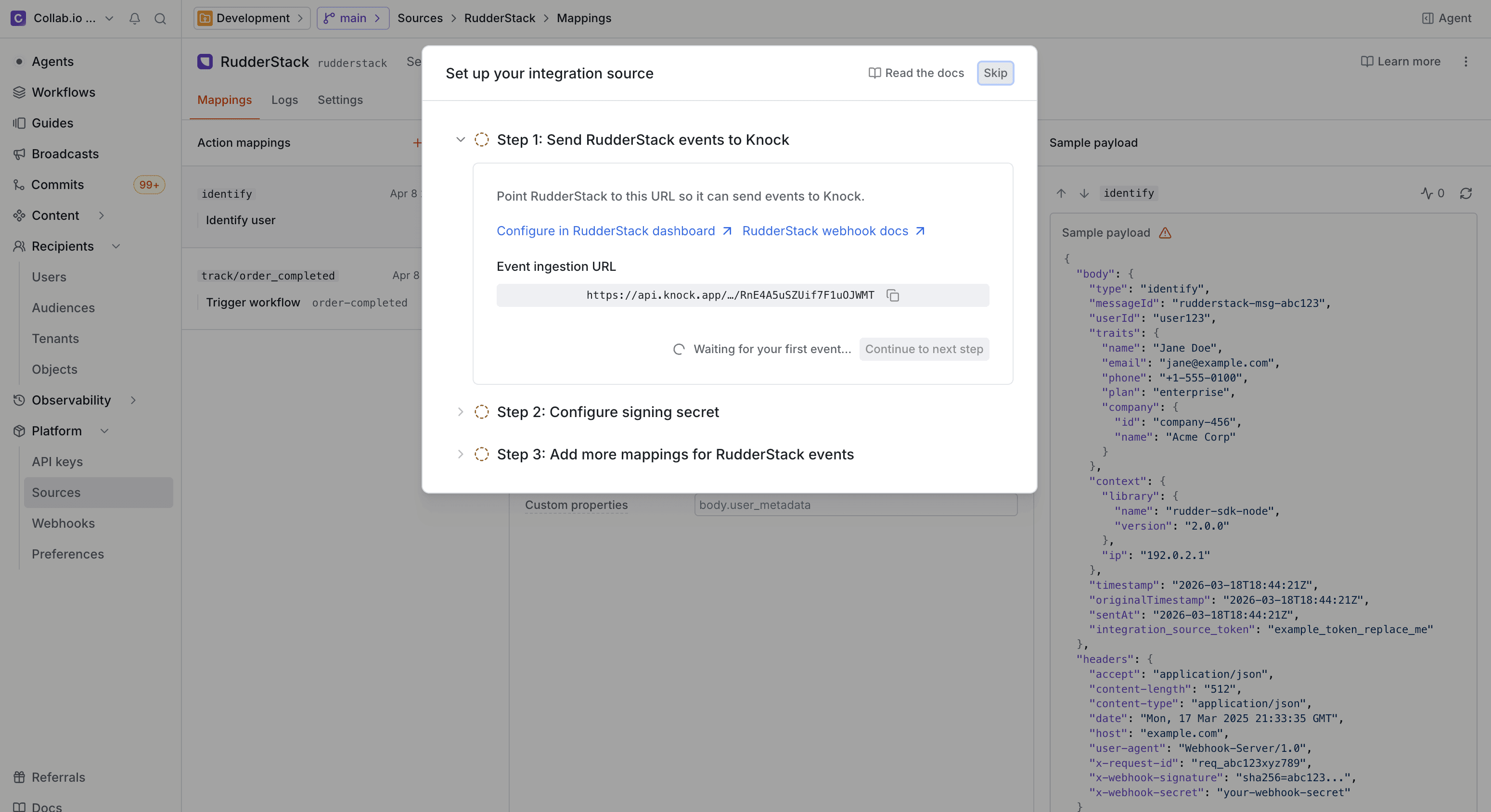
Copy the webhook URL

After creating the source, Knock displays a setup wizard. Copy the event ingestion URL from step 1 of the wizard. You will paste this into your RudderStack destination configuration in a later step.

The RudderStack source setup wizard showing the event ingestion URL to copy
4

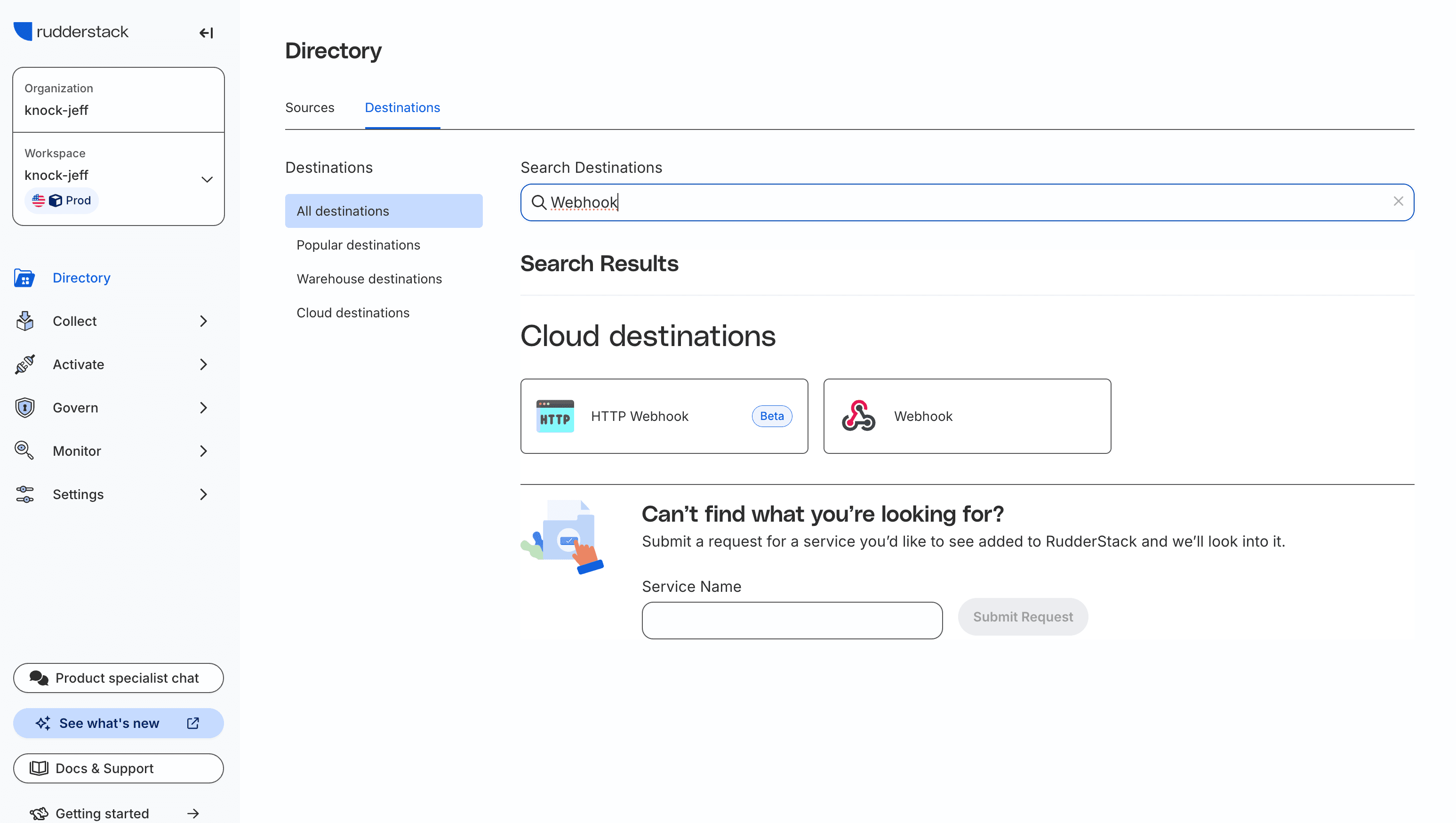
Search for the webhook destination in RudderStack

In your RudderStack workspace, navigate to Directory > Destinations and search for "Webhook." Select the Webhook destination type from the results.

The RudderStack Directory showing search results for Webhook destinations
5

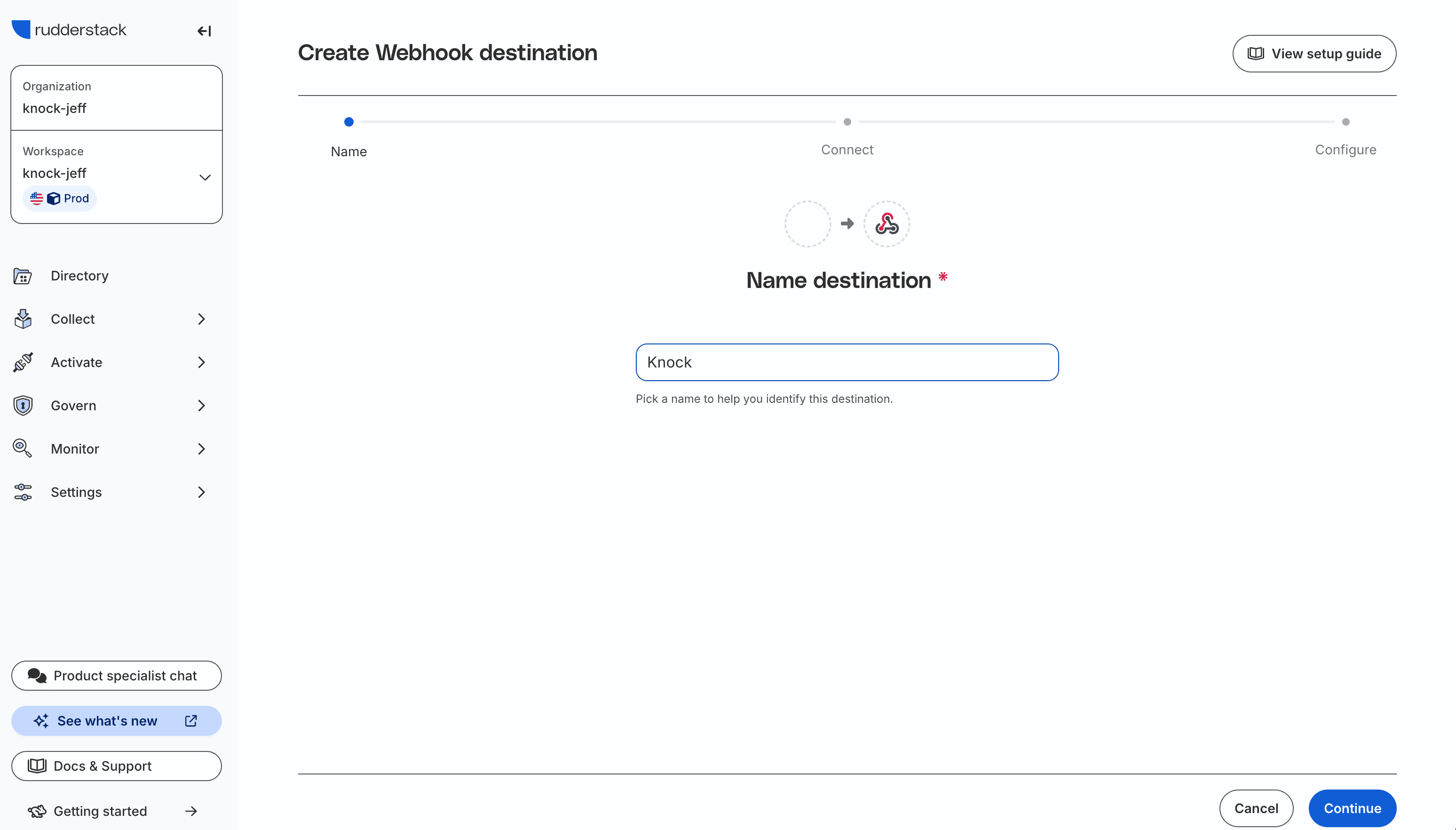
Name the destination

Give the destination a name to identify it in RudderStack, such as "Knock," and click Continue.

The RudderStack Create Webhook destination wizard with the Name field set to Knock
6

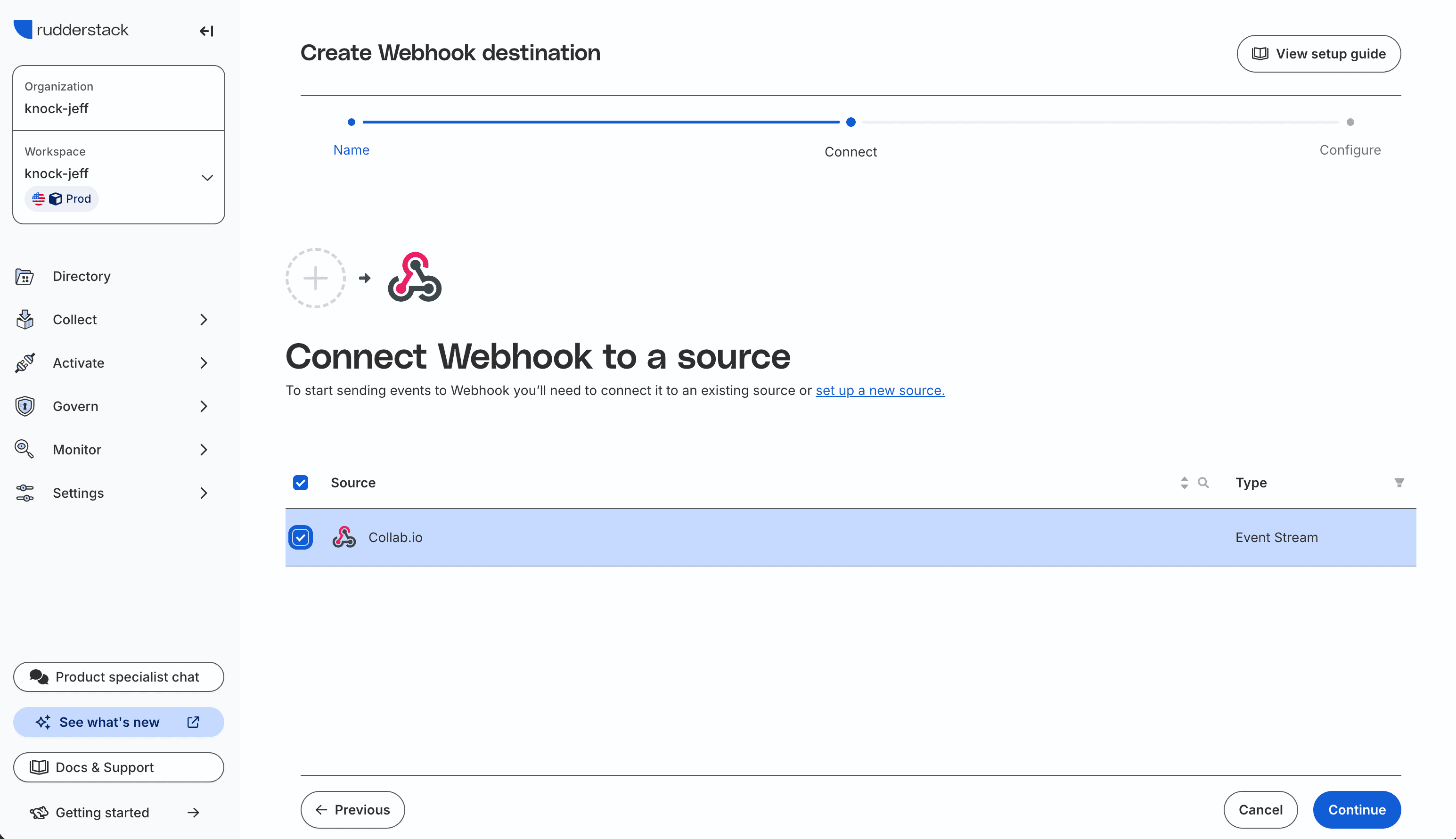
Connect to a source

Select the RudderStack source you want to route events from. This determines which track and identify events are forwarded to Knock. Click Continue to proceed.

The RudderStack Connect step showing a source selected to send events to the Webhook destination
7

Configure the webhook URL

In the Connection Settings step, paste the Knock event ingestion URL you copied earlier into the Webhook URL field and set the URL Method to POST. You can also add a content-type: application/json header. Click Continue to finish creating the destination.

The RudderStack Configure step showing the Knock webhook URL and POST method

Once configured, RudderStack sends webhook events to Knock in real time. You can verify that events are arriving by checking the event logs on the source environment page.

Pre-configured events

#

RudderStack sends events based on the RudderStack event spec. Below are common event types you might map to actions in Knock.

Event typeDescription
trackA user performed an action
identifyUser traits were created or updated

See the RudderStack event spec documentation for the full list of available event types and their schemas.

Customization

#

You can modify the default action mappings or add new ones for any event type Knock receives from RudderStack. For details on how field mapping works with dot-notation paths, see the custom source page.

If you need to map RudderStack events to actions beyond triggering workflows, see the full list of available actions in the sources overview.

Event idempotency

#

Knock uses the messageId field from the RudderStack event spec as the idempotency key. RudderStack includes a messageId in every track and identify event by default, so no additional field configuration is needed.

You can change the idempotency key field or disable idempotency checks from the Settings tab in your source environment configuration. Events without an idempotency key attribute are processed normally.

For details on how Knock handles idempotent events, key validation rules, and the default 24-hour idempotency window, see the source event idempotency section of the sources overview.

New chat